Fix Missing DLL Files in Windows 10 Safely
Repair missing DLL errors in Windows 10 without downloading individual DLL files from untrusted websites.
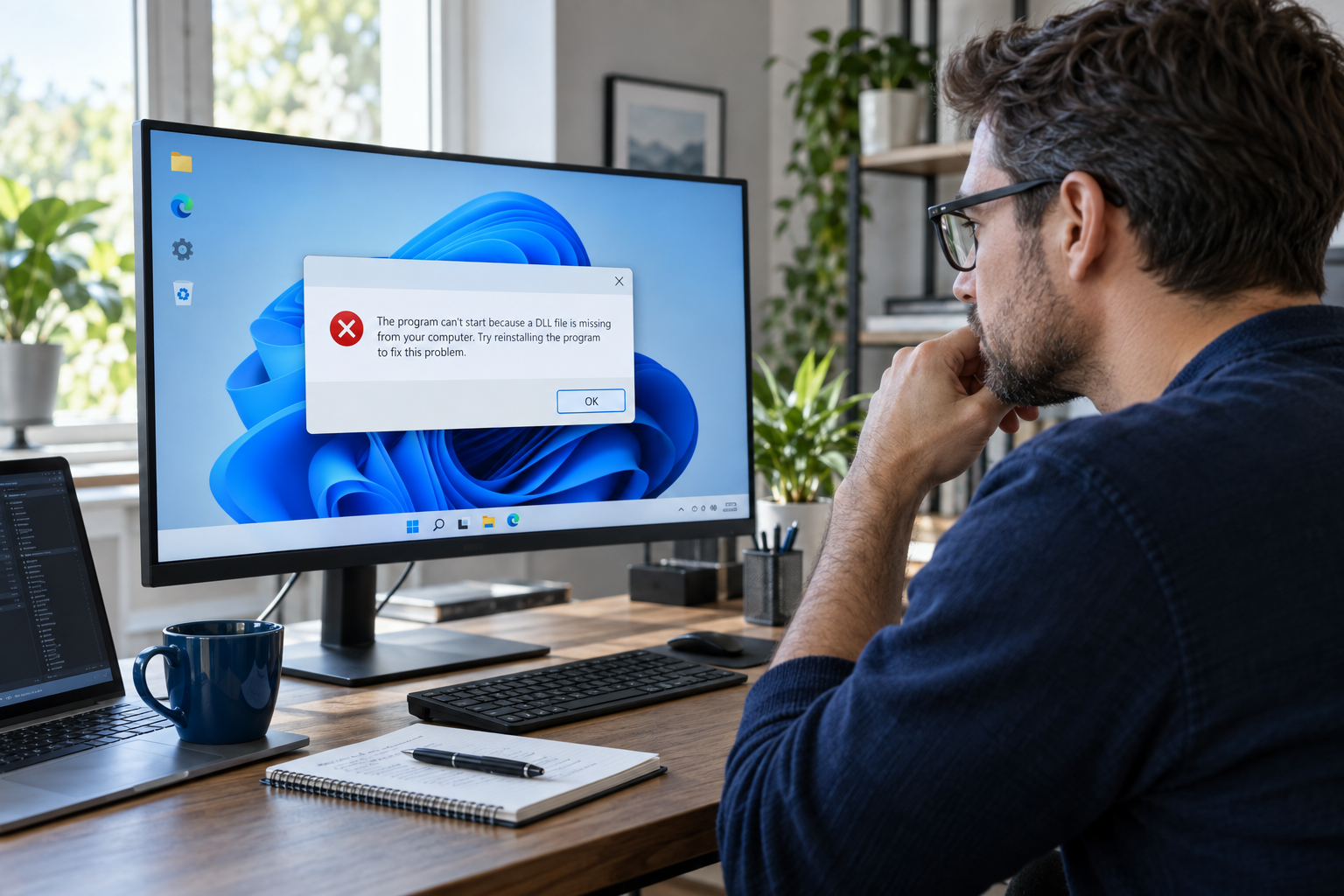
Identify
Record the exact message, timing, and most recent relevant change.
Repair
Use supported Windows recovery tools in a controlled order.
Verify
Test the result before changing another component.
Understand the problem
A missing DLL message can result from an incomplete installation, quarantined file, damaged Windows component, mismatched software version, or missing Microsoft runtime. The DLL name alone does not establish a safe download source.
A useful diagnosis connects the symptom to a repeatable pattern. Record when it happens, whether Safe Mode changes the result, and what changed immediately before the first failure.
Signs that match this problem
- One application consistently names the same DLL
- The error began after an install, update, or security cleanup
- Several applications fail with Windows component errors
- The DLL belongs to Visual C++, .NET, DirectX, or a device package
Before making changes
Capture the evidence
Photograph the complete error and note the time, workload, recent updates, drivers, applications, firmware changes, and connected devices.
Check the failure timeline
Prefer the one change most closely connected with the first failure. Avoid changing several unrelated components at once.
Prepare recovery access
Locate backups, account credentials, installation media, and the BitLocker recovery key before using advanced recovery tools.
Safe repair path
Step 1
Record the exact DLL name, application, and error text.
Step 2
Repair or reinstall the application from its official source.
Step 3
Install the supported Microsoft runtime or repair Windows components when applicable.
Step 4
Run DISM before SFC if protected Windows files may be damaged.
Verify the repair
Restart normally and reproduce the original activity once. Confirm that the error is gone, Windows remains stable, and important files open correctly. Review Event Viewer or the original diagnostic source rather than relying only on the absence of a pop-up.
If the same symptom returns, stop repeating the same unsuccessful step. Recheck the evidence and move to the next relevant recovery option or qualified support.
Reduce the chance of recurrence
- Keep a current backup and test that important files can be restored.
- Install Windows, driver, and firmware updates from official sources.
- Save encryption recovery keys outside the affected computer.
- Create a restore point before major system changes.
- Maintain adequate free disk space and stable power.
- Change one low-level component at a time and record the result.
Frequently asked questions
Where should I download a missing DLL?
Start by identifying the exact symptom and using the least destructive supported recovery option. Identify which application owns the missing DLL. Repair or reinstall that application, its official runtime, or Windows components rather than downloading a loose file.
Will SFC replace every missing DLL?
If the first repair does not work, preserve the error evidence, protect important files, and escalate according to the failure timeline rather than repeating unrelated fixes.
References and further reading
- Microsoft Support: Recovery options in Windows
- Microsoft Support: Windows Recovery Environment
- Microsoft Support: DISM and System File Checker